Layout: Cost Calculator Results
Cost Calculator Results
Category: Waterlogic Layouts.
Content Blocks Documentation: https://docs.modmore.com/en/ContentBlocks/v1.x/Layouts.html
Cost calculator results layout is intended to be used on a resource that the Cost Calculator Field points to. The results from the form submission appear within this layout.

figure 1
Settings are available by hovering over the field and clicking the cog in the top right
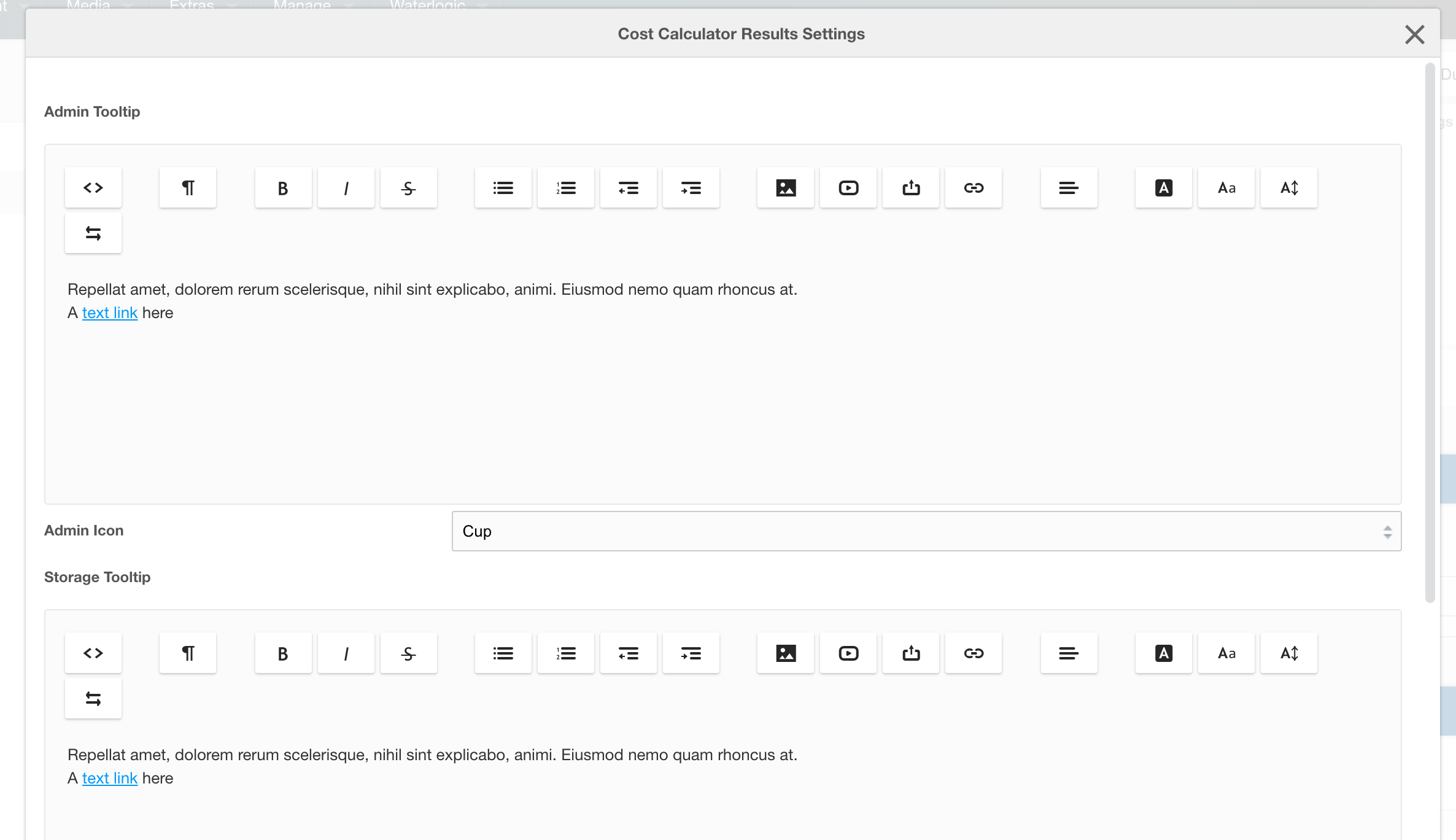
figure 2
Settings
| Setting | Description | Default |
| Form Resource ID | The returning URL the user goes to this page without submitting the form. This should be the ID of the resource where the form sits on the context. | |
| Admin Tooltip | Tooltip content for "showing" admin calculations | |
| Admin Icon | Icon that displays beside the admin title block in the results. |
|
| Storage Tooltip | Tooltip content for "showing" storage calculations | |
| Storage Icon | Icon that displays beside the storage title block in the results. | |
| Security Tooltip | Tooltip content for "showing" security calculations | |
| Security Icon | Icon that displays beside the security title block in the results. | |
| Productivity Tooltip | Tooltip content for "showing" productivity calculations | |
| Productivity Icon | Icon that displays beside the productivity title block in the results. |
Example Output:

Global Settings for the calculator (context based and lexicons)
This is a preconfigured form and uses settings and variables in:
Website Settings (found on the Modx dashboard, see figure 3)

figure 3
Under website settings go to Cost Calculator:

figure 4
To manage settings for other contexts, select context under the Choose Context dropdown. (seen in image above).
Lexicons
Tooltips, placeholders and general content for this form and the results fully use lexicons. To access lexicons go to the "cog" icon at the top right of the Modx dashboard and select Lexicons.

figure 5
To find lexicon values for cost calculator, select Waterlogic -> cost_calculator -> en (namespace -> topic -> language) where "en" is the language to are going to edit.

figure 6