Templates
Modx templates used for Modx resources
- 01_Resource_article
- 02_Resource_article_parent
- 04_product_template
- 03_Resource_article_section
- 05_accessories_product_page
- 06_product_category_tpl
- 07_Accessory_categories
- 08_Accessory_sub_categories
- 14_Landing_Page_Template
- 15_Product_finder
01_Resource_article
Modx template used with Resource articles
Use this template when creating resource articles. There are a number of template variables that need to be filled in for when the resource is called using the Featured Article content blocks field
Template variables
| Template variable | Description | Default |
| Type of content | Select the content type for this resource article. Content types are defined in the Resource parent template variables. See 02_Resource_article_parent for usage. | |
| Article feature image | Select an image to be used when this article is used with the Featured Article content blocks field | |
| Tags | Select/ create tags for this article. These are used in the Article Resource Section to help organise and filter the resource. |
02_Resource_article_parent
Modx template used for the top-level parent section of Waterlogic resource articles.
Use this template when creating the top-level parent for resource articles. This template contains template variables that 01_Resource_article requires to work correctly.
Template variables
| Template variable | Description | Default |
| Content types |
Create content types for articles to use. You can add as many types as you want, but you must specify the Font Awesome Icon and Font Awesome Icon style to use. These content types will be available to select from when using the 01_Resource_article.
|

How/ When to use this template
- Page resource parent (02_Resource_article_parent - this template)
- Page resource section
- Page resource section
04_product_template
Modx template used for Waterlogic products
This template contains settings and variables specific to Waterlog products. It is important that every product on the website uses the correct product template.
Template variables
| Name | Description | Default value |
| Maximum number of recommended users | ||
| Minimum number of recommended users | ||
| Product options |
Select the water options this product has: Cold | Sparkling | Ambient | Hot | Extra hot |
How/ When to use this template
- Product category (Collection)
- Product page (04_Product_template - this template)
Template variables
This template has a number of variables that need to be set in order for content to render correctly across the website.
Product
| Template variable name | Usage | Image |
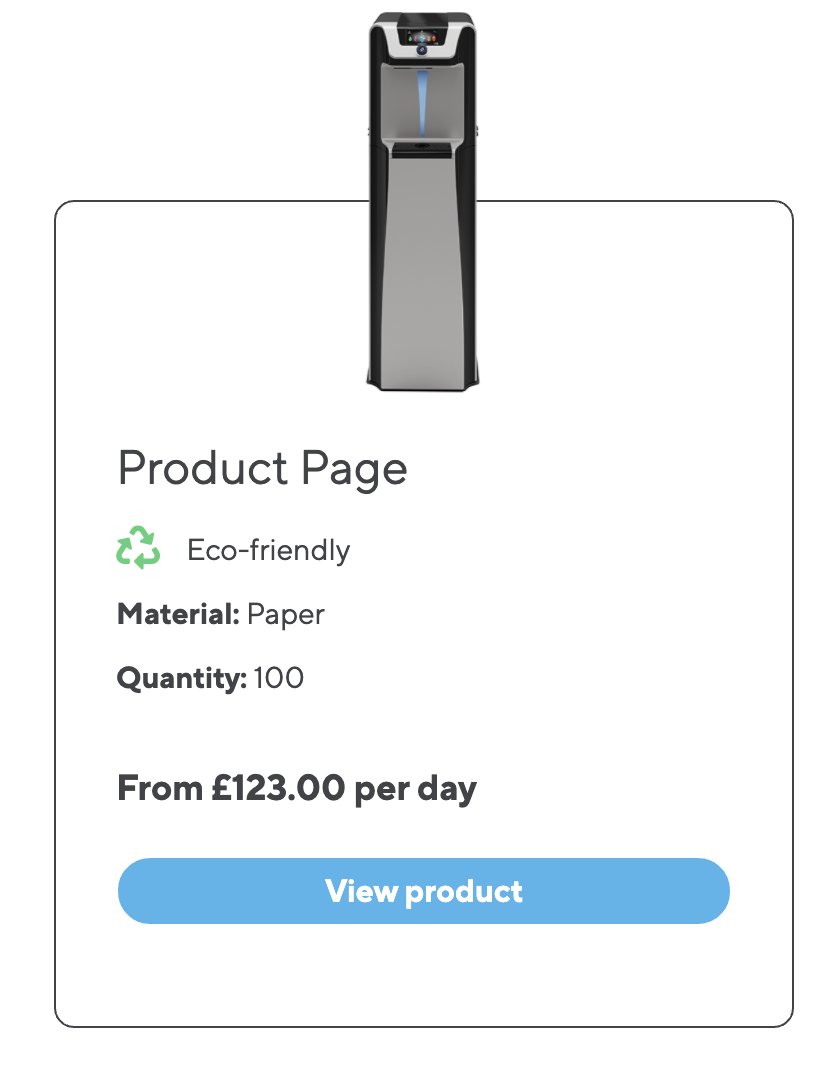
| Product Promo Text | Promo text to appear above title (e.g. Subscribe and save). |
|
| Product pricing text | Used when this product is displayed using the Product collection Content Blocks field |
FIGURE 1 |
| Product Code | Used to display product code on email communications and certain content block fields that reference this product | |
| Is this product Eco Friendly? | A checkbox that marks this product as Eco-friendly and displays this information when product is called through certain content block fields | See figure 1 |
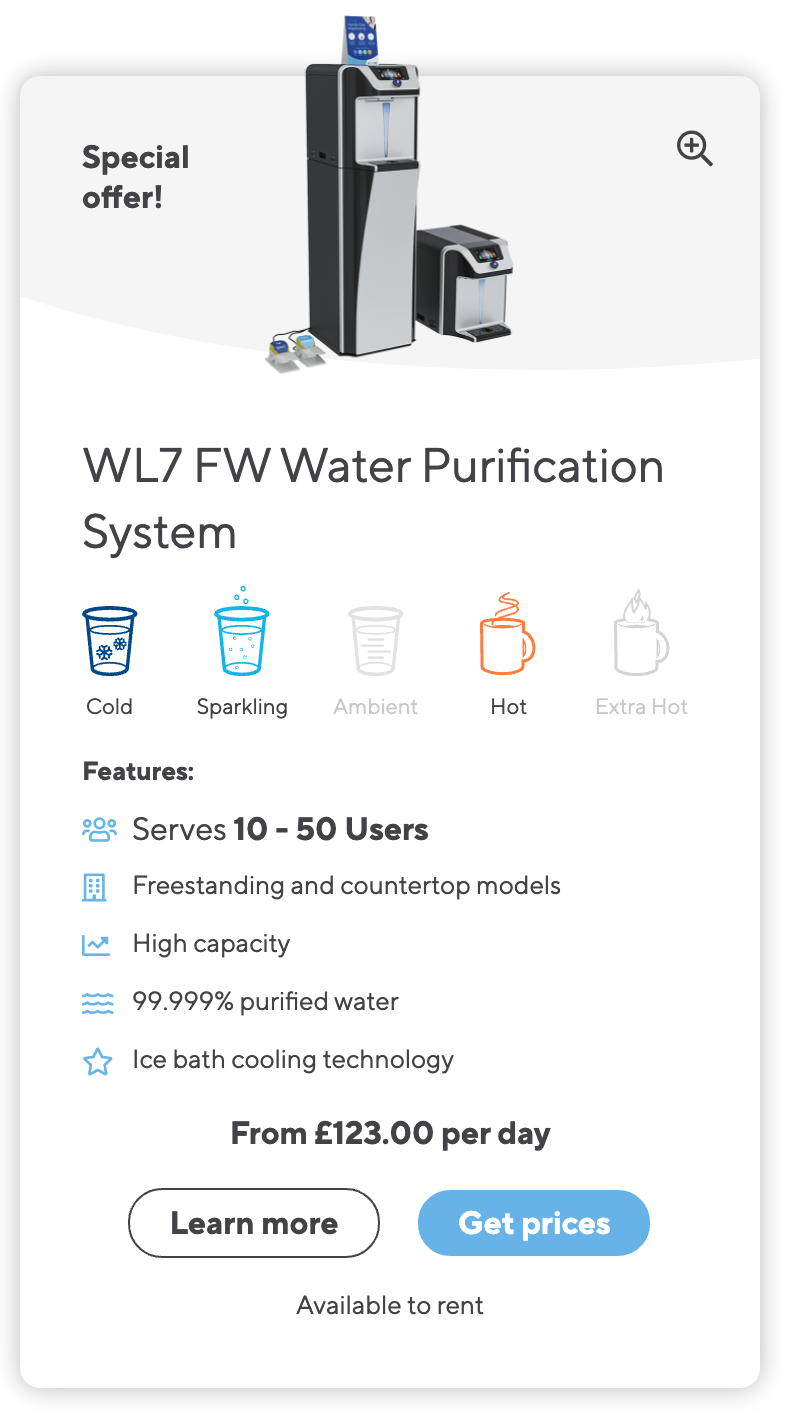
| Product availability | Select the availability of this product, this displays the information when the product is called through certain content block fields |
FIGURE 2 |
Product - Feature
| Template variable name | Usage | Image |
| Product remark | Displays the product remark when being called through certain content block fields |
See figure 2 |
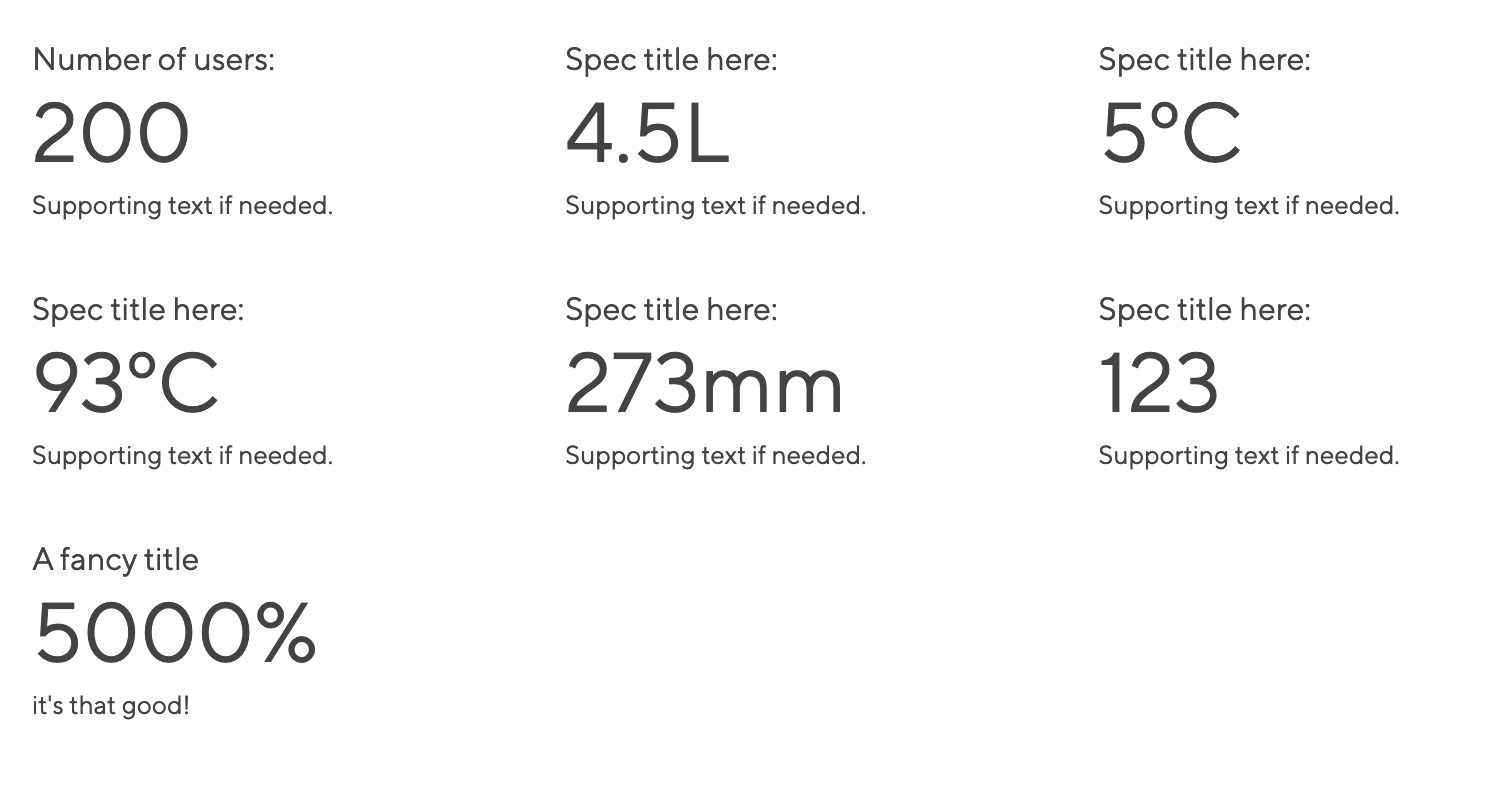
| Product Specifications | Defines a list of features that this product has. These are referenced on the product resource in both the Product Specification Content Block and Product Specification Simple Content Block |
Figure 3 |
| Icon feature list | A list of features and corresponding icons. These are used on the product category page when referencing this product |
See figure 2 |
| Product feature list | A list of features. These are used when referencing this product using the Content Blocks Product Collections field |
See figure 1 |
Product - Images
| Template variable name | Usage | Image |
| Product feature image | This image will be used across the website to reference this product when it's referenced using a Content block or added to the quote wish list. This is VERY IMPORTANT |
See figure 1 & 2 |
Product - Options
| Template variable name | Usage | Image |
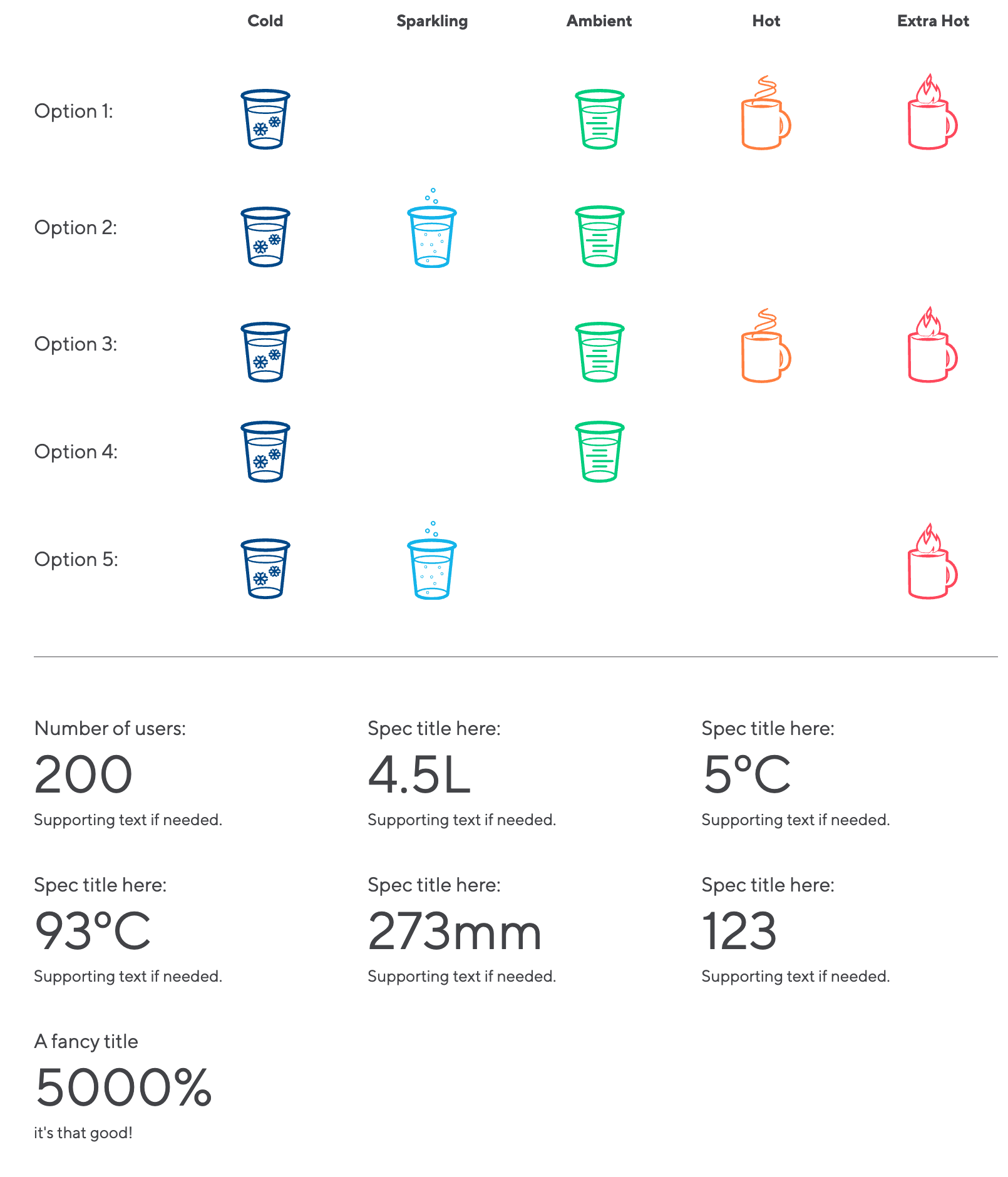
| Maximum number of recommended users | Used to display the number of users recommended for this machine. This is a required field |
FIGURE 4 |
| Minimum number of recommended users | Used to display a minimum number of users recommended for this machine. This is an optional field |
|
|
Water options
|
Used with the Product Hero Details Content Blocks field to show the different water options available for this product. Also used across the website when referencing this product using other Content Blocks fields |
See figure 2 & 4 |
| All water options for this product | Enter the different water variations for this product. This is used in connection with the Product Specification Content Blocks field |
FIGURE 5 |


03_Resource_article_section
Modx template used for the articles section
Use this template when creating the next level down from the Article parent resource. This template will hold all resources and article in a grid for easier editing.
How/ When to use this template
- Page resource parent
- Page resource section (03_Resource_article_section - this template)
- Page resource section (03_Resource_article_section - this template)
05_accessories_product_page
Modx template used for Waterlogic products
This template contains settings and variables specific to Waterlog products. It is important that every product on the website uses the correct product template.
How/ When to use this template
- Accessories sub-category (Collection)
- Accessories Product page (05_accessories_product_page - this template)
Template variables
This template has a number of variables that need to be set in order for content to render correctly across the website.
Product
| Template variable name | Usage | Image |
| Product pricing text | Used when this product is displayed using the Product collection Content Blocks field |
FIGURE 1 |
| Product Code | Used to display product code on email communications and certain content block fields that reference this product | |
| Is this product Eco Friendly? | A checkbox that marks this product as Eco-friendly and displays this information when product is called through certain content block fields | See figure 1 |
| Product availability | Select the availability of this product, this displays the information when the product is called through certain content block fields |
FIGURE 2 |
Product - Feature
| Template variable name | Usage | Image |
| Product remark | Displays the product remark when being called through certain content block fields |
See figure 2 |
| Icon feature list | A list of features and corresponding icons. These are used on the product category page when referencing this product |
See figure 2 |
| Product feature list | A list of features. These are used when referencing this product using the Content Blocks Product Collections field |
See figure 1 |
Product - Images
| Template variable name | Usage | Image |
| Product feature image | This image will be used across the website to reference this product when it's referenced using a Content block or added to the quote wish list. This is VERY IMPORTANT |
See figure 1 & 2 |
06_product_category_tpl
Modx template used for Waterlogic products
This template is designed to hold products in an easy to navigate grid. By changing the product category to use this template, all products will be loaded into its grid for easier management.

Template variables
| Template variable | Description | Default |
| Reference title | A title for this resource when referencing it on another resource | |
| Reference description | A description for this resource when referencing it on another resource | |
| Reference image | An image for this resource when referencing it on another resource | |
| Resource Icon feature list | Feature list that uses Icons to impact meaning to users - these are shown the product category is referenced using the Product Category Content Block Field |
07_Accessory_categories
Modx template used for Waterlogic accessories top categories
This template is to be used for top-level accessories category pages. It provides an extra setting called Menu All Title that is used when this resource is referenced on the Sidebar Category content block.

08_Accessory_sub_categories
Modx template used for Waterlogic accessories sub categories
To use this template, when creating a new accessories sub-category resource be sure to set the Resource Type (in settings tabs) to Collection. This will add a product grid (like below) for easier management of product pages.

14_Landing_Page_Template
Modx template used for Waterlogic landing pages
Use this template when creating landing pages, this template does not have navigation, you must add in the content blocks Landing page navigation field.
15_Product_finder
A template used specifically for the Product Finder.
Template Variables
Product Finder Category
This resource should be duplicated out for each context and only the Icon, Icon colour and text are to be changed for visual and lexicon reasons. DO NOT CHANGE any value inputs as these are set to match the RAW values of template variables. If you require additional select inputs you must contact Gel Studios who can advise the raw value of the TV.
Tabs
The Tab settings control which product categories to search through for products. You need to enter each product category ID (This is the parent ID of the products) and a title for its tab navigation.

Figure 1
Table 1
| Name | Description | Default value |
| ID of Parent | Enter the ID of the parent resource to search for products | |
| Tab title | Enter a title for this resource to display as tab navigation |
Product Finder Users
The Product finder user settings control the settings for the Max and Min number of user TV values.

Figure 2
Table 2
| Name | Description | Default value |
| Icon | Select an icon to represent this option | |
| Icon colour | Colour of the icon | Light Blue |
| Text | Text to display to the user | |
| Min value | The minimum value | DO NOT CHANGE |
| Max value | The maximum value | DO NOT CHANGE |

Figure 3
User notice
Enter text for the user tab notice modal. The Main title of the modal, tab title and subtitle are all controlled in the Lexicon settings.

Figure 4

Figure 5
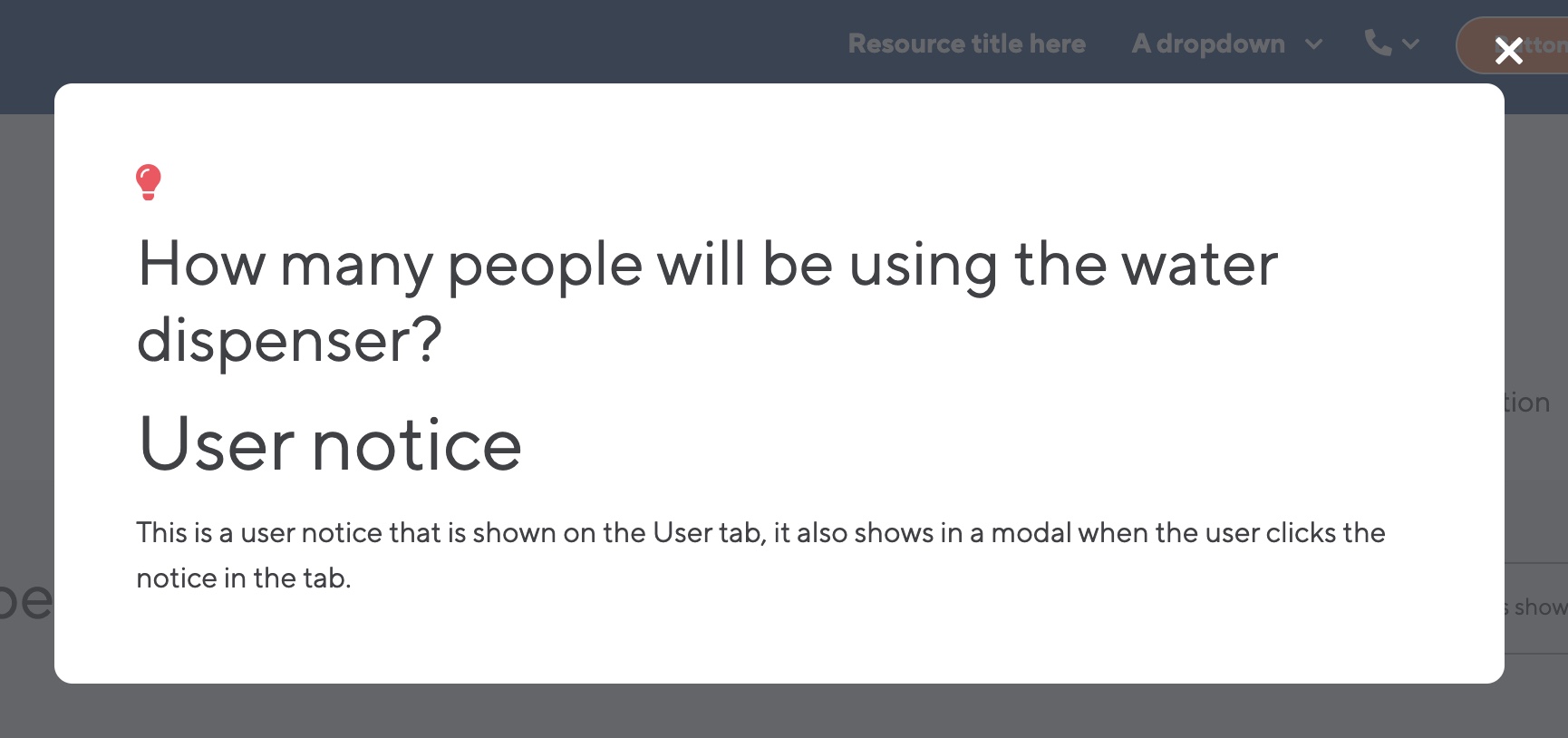
Figure 6
Product Finder Types
This setting controls the water types for the product finder.

Figure 7
Table 3
| Name | Description | Default value |
| Icon | Select an icon to represent this option | |
| Icon colour | Colour of the icon | Light Blue |
| Text | Text to display to the user | |
| Value | The raw value of the product type TV | DO NOT CHANGE |

Figure 8
Type notice
Enter text for the type tab notice modal. The Main title of the modal, tab title and subtitle are all controlled in the Lexicon settings.

Figure 9
Product Finder Location
This setting controls the location of the product for the product finder.
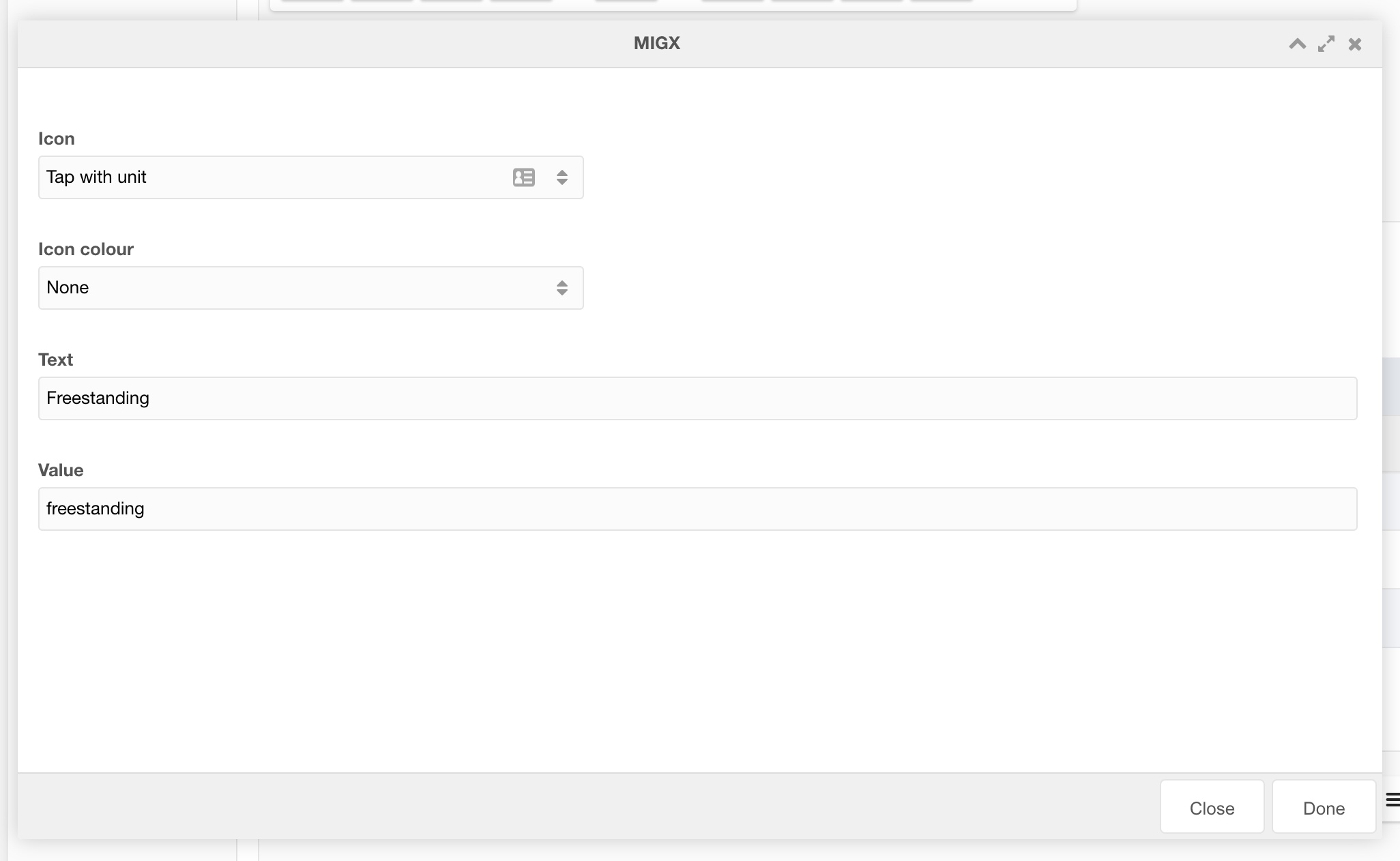
Figure 10
Table 4
| Name | Description | Default value |
| Icon | Select an icon to represent this option | |
| Icon colour | Colour of the icon | Light Blue |
| Text | Text to display to the user | |
| Value | The raw value of the product location TV | DO NOT CHANGE |

Figure 11
Location notice
Enter text for the location tab notice modal. The Main title of the modal, tab title and subtitle are all controlled in the Lexicon settings.

Figure 12
Product Finder Requirements
This setting controls the requirements of the product for the product finder.

Figure 13
Table 5
| Name | Description | Default value |
| Icon | Select an icon to represent this option | |
| Icon colour | Colour of the icon | Light Blue |
| Text | Text to display to the user | |
| Value | The raw value of the product options TV | DO NOT CHANGE |

Figure 14
Requirements notice
Enter text for the requirements tab notice modal. The Main title of the modal, tab title and subtitle are all controlled in the Lexicon settings.

Figure 15