
15_Product_finder
A template used specifically for the Product Finder.
Template Variables
Product Finder Category
This resource should be duplicated out for each context and only the Icon, Icon colour and text are to be changed for visual and lexicon reasons. DO NOT CHANGE any value inputs as these are set to match the RAW values of template variables. If you require additional select inputs you must contact Gel Studios who can advise the raw value of the TV.
Tabs
The Tab settings control which product categories to search through for products. You need to enter each product category ID (This is the parent ID of the products) and a title for its tab navigation.

Figure 1
Table 1
| Name | Description | Default value |
| ID of Parent | Enter the ID of the parent resource to search for products | |
| Tab title | Enter a title for this resource to display as tab navigation |
Product Finder Users
The Product finder user settings control the settings for the Max and Min number of user TV values.

Figure 2
Table 2
| Name | Description | Default value |
| Icon | Select an icon to represent this option | |
| Icon colour | Colour of the icon | Light Blue |
| Text | Text to display to the user | |
| Min value | The minimum value | DO NOT CHANGE |
| Max value | The maximum value | DO NOT CHANGE |

Figure 3
User notice
Enter text for the user tab notice modal. The Main title of the modal, tab title and subtitle are all controlled in the Lexicon settings.

Figure 4

Figure 5
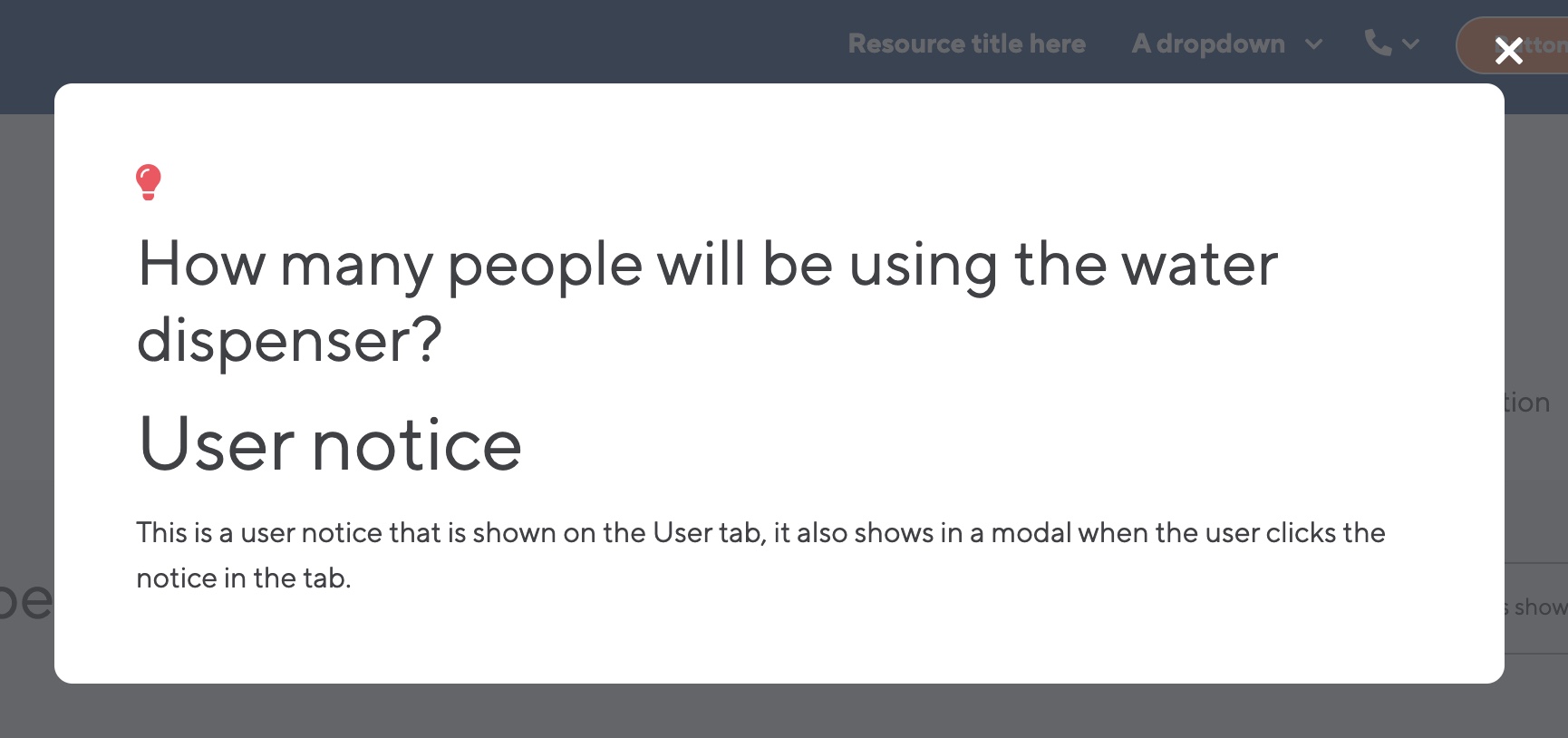
Figure 6
Product Finder Types
This setting controls the water types for the product finder.

Figure 7
Table 3
| Name | Description | Default value |
| Icon | Select an icon to represent this option | |
| Icon colour | Colour of the icon | Light Blue |
| Text | Text to display to the user | |
| Value | The raw value of the product type TV | DO NOT CHANGE |

Figure 8
Type notice
Enter text for the type tab notice modal. The Main title of the modal, tab title and subtitle are all controlled in the Lexicon settings.

Figure 9
Product Finder Location
This setting controls the location of the product for the product finder.
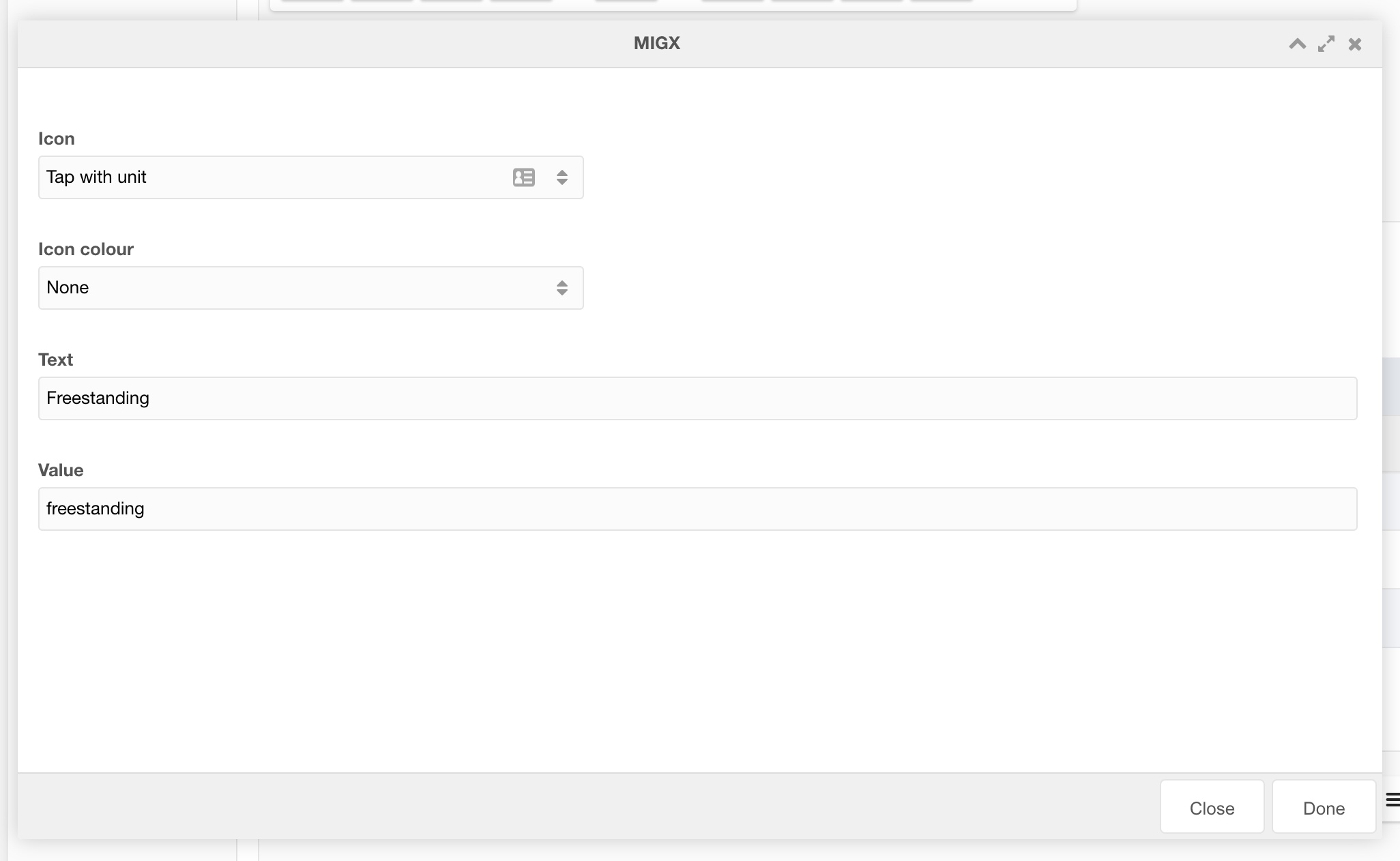
Figure 10
Table 4
| Name | Description | Default value |
| Icon | Select an icon to represent this option | |
| Icon colour | Colour of the icon | Light Blue |
| Text | Text to display to the user | |
| Value | The raw value of the product location TV | DO NOT CHANGE |

Figure 11
Location notice
Enter text for the location tab notice modal. The Main title of the modal, tab title and subtitle are all controlled in the Lexicon settings.

Figure 12
Product Finder Requirements
This setting controls the requirements of the product for the product finder.

Figure 13
Table 5
| Name | Description | Default value |
| Icon | Select an icon to represent this option | |
| Icon colour | Colour of the icon | Light Blue |
| Text | Text to display to the user | |
| Value | The raw value of the product options TV | DO NOT CHANGE |

Figure 14
Requirements notice
Enter text for the requirements tab notice modal. The Main title of the modal, tab title and subtitle are all controlled in the Lexicon settings.

Figure 15