
Main Navigation
Contents
Setting up the navigation
Each context will have a 'context settings' resource that sits at the bottom of the context tree. Open the resource and navigate to the template variables tab. Here you will be able to manage both the default navigation and footer.
Step 1

Figure 1
Table 1
| Setting | Description | Default |
| Navigation align | Centre align the Navigation or Left align. Centre align show only be used for the global context | Left |
| Show basket in navigation? | Toggle the visibility of the Wishlist basket. This should be set to No for the global context | Yes |
| Navigation menu | Controls the whole context navigation. To add a new item, click Add Item | unset |
| Single navigation links | Add/ remove single navigation links. To add a new item, click Add Item | unset |
Navigation menu

Figure 2
Table 2
| Setting | Description | Default |
| Navigation dropdown type | Select the type of dropdown that this top-level navigation item will appear as. (see Table 3 for dropdown type examples) | Title only |
| Navigation-link title | Title of the navigation item | |
| Display navigation list as | Select the type of navigation dropdown to show. If you want to use multiple columns then use columns. If the Navigation dropdown type is Megamenu this should be list. |
List |
| Navigation column title | If Navigation dropdown type is Column you can set a title and description than spans the width of the column list If left empty then both title and description will not show |
unset |
| Navigation column description | Adds a description to column below column title | unset |
| Navigation columns | Each navigation item needs a column which will hold the dropdown links. If the 'Display navigation list as' is set to column you can add more than one column. If set to list only add ONLY one column. See Table 4 & 5 for how each dropdown navigation will look and what data the dropdowns display |
unset |
| Mega menu text | If Navigation dropdown type is MegaMenu you can define a call to action banner at the bottom of the dropdown. | |
| Mega menu link text | Link text for CTA banner link | |
| Mega Menu Link ID | ID of resource to link CTA | |
| Mega Menu CTA Colour | CTA Banner colour | Orange |
| Link Only Resource ID | Resource id to link to when using the 'Navigation dropdown type' of 'link only' |
Table 3
| Navigation dropdown type | Description |
| Title only | Displays a dropdown with just the navigation item title |
| Title + Description | Displays a dropdown with the navigation item title and a description of the linked resource |
| Title + Icon | Displays a dropdown with the navigation item title and a Waterlogic Icon which represents the resource |
| Title, Icon + Description | Displays a dropdown with the navigation item title, a description of the linked resource and a Waterlogic Icon which represents the resource |
| Mega Menu | Displays items in a row with an Icon and resource title. The bottom of the dropdown has a call to action banner with text and a link to a resource |
| Link Only | Displays a simple link within then menu (no dropdown functionality). Only Link Only Resource ID needs to be populated for this to work. |
Table 4
|
Figure 3 |
Figure 4 |
|
Figure 5 |
Figure 6 |
|
Figure 7 |
|
|
Figure 8 |
|


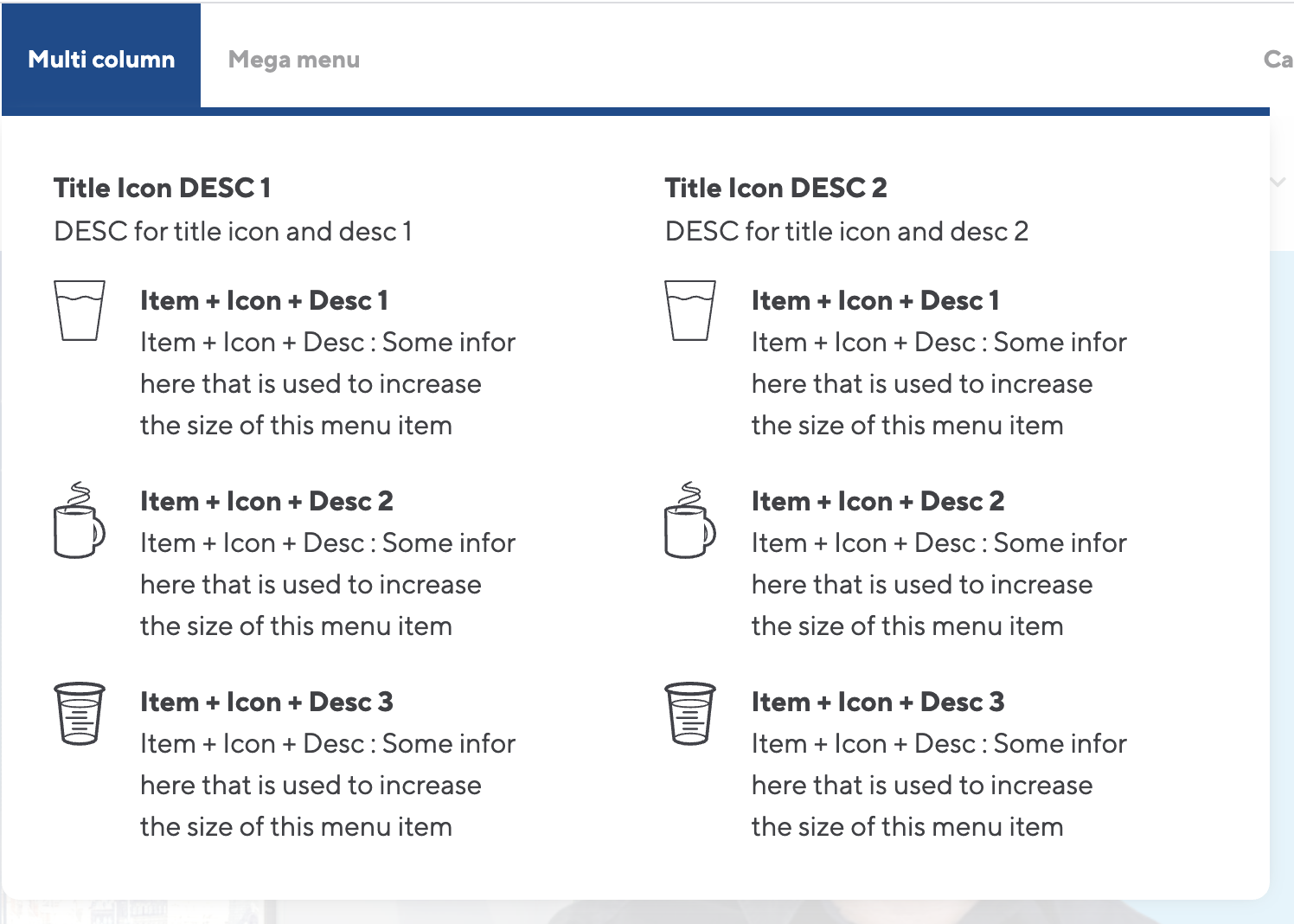

Step 2
Navigation columns
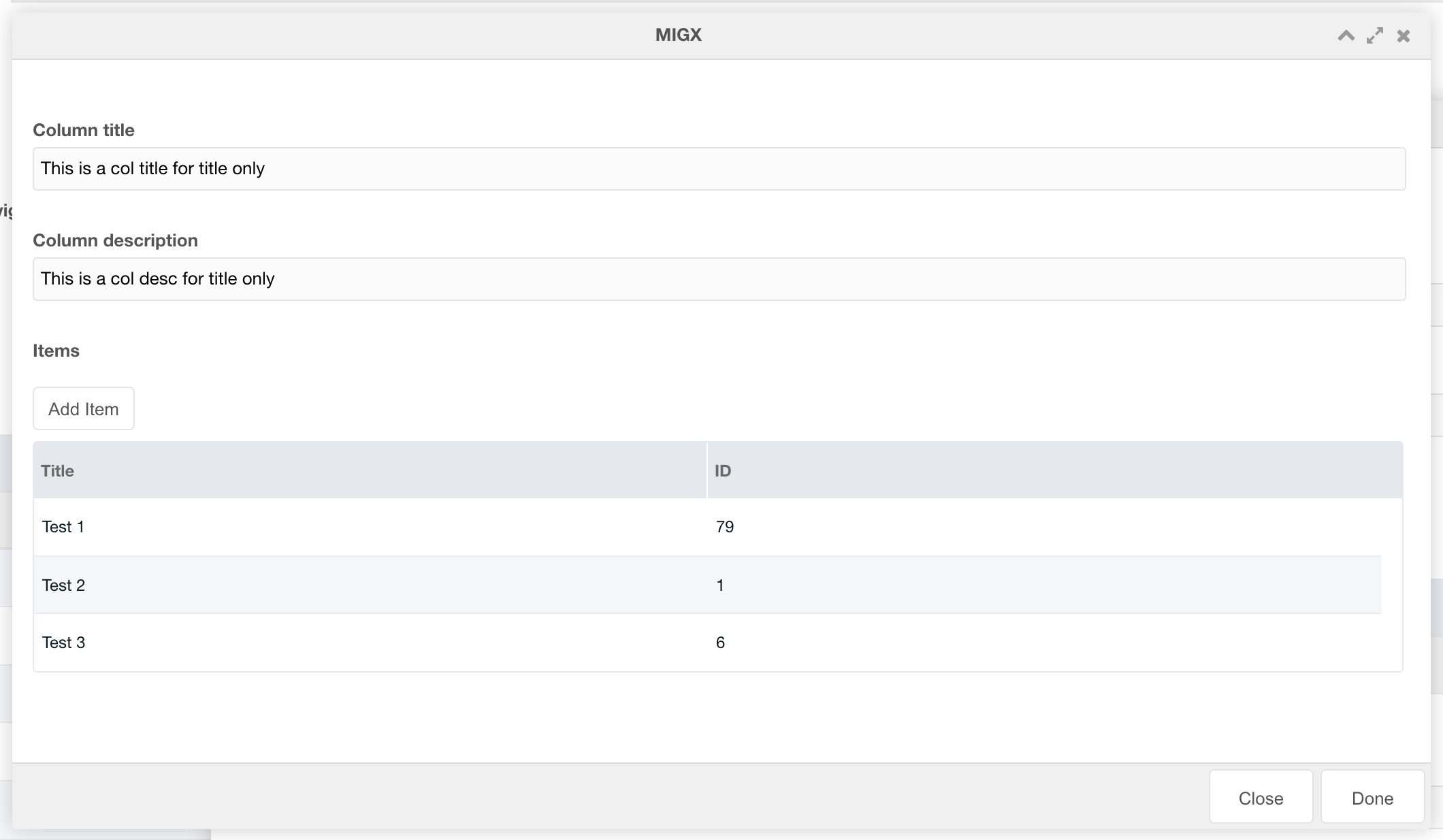
Figure 9
Table 5
| Setting | Description | Default |
| Column title | Add a title to this columns. If the parent Navigation Column title is set then this will not show. See figure 7 above for example of column title + descriptions on individual columns |
Unset |
| Column description | Description for column | Unset |
| Items | Add navigation items | Unset |
Step 3
Navigation Items

Figure 10
Table 6
| Setting | Description | Default |
| Resource title | Menu title for the resource | Unset |
| ID of resource to link to | Enter the ID of the resource that this navigation link will link to | Unset |
| Resource description | If Navigation dropdown type includes a description this description will be shown | Unset |
| Resource Icon | If Navigation dropdown type includes an Icon this Icon will be shown | Unset |
Single Navigation links

Figure 11
Table 7
| Setting | Description | Default |
| Resource ID | Enter the ID of the resource that this navigation link will link to | Unset |
| Link title | Menu title for the resource | Unset |
| Font Awesome Icon | Enter a Font Awesome icon to show instead of the title at smaller screen widths | Unset |
| Show on desktop? | Show this navigation item on desktop or only in the mobile menu? | Unset |
Aux Menu
The AUX menu is represented by a Hamburger menu (3 stacked horizontal bars) on the far right-hand side of the navigation bar.

Figure 12
Table 8
| Setting | Description | Default |
| Show AUX Menu? | Toggle the AUX menu On/ Off | Yes |
| Aux menu | Create AUX menu items |
Aux Menu items

Figure 13
Table 9
| Setting | Description | Default |
| Link title | Title of the menu item | Unset |
| Link description | Description for this menu item | Unset |
| Link resource ID | ID of the resource to link to | Unset |
Locations
The locations section allows you to show different types of links to translated resource.

Figure 14
Table 10
| Setting | Description | Default |
| Select location type | Select the location dropdown type. By default, this is set to Local. But you can choose none to hide the Locations dropdown or Local to show only translated resources that relate to this location | Local |
| Location dropdown title | If the location type is global then this title will be used on the dropdown content (See figure 15) | Unset |
| Location dropdown description | If the location type is global then this description content will be used on the dropdown (See figure 15) | Unset |
The Global dropdown option produces the following dropdown on the navigation bar
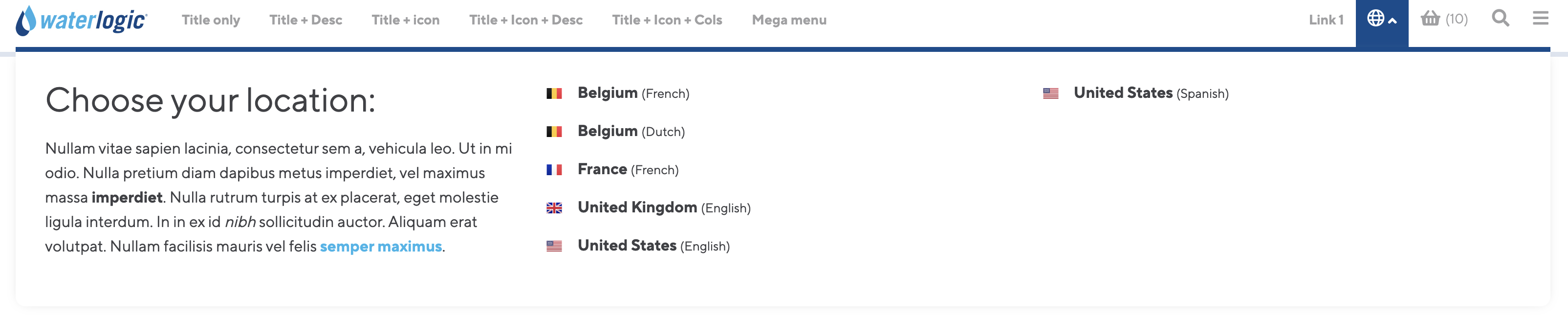
Figure 15
The Local dropdown option produces the following dropdown on the navigation bar
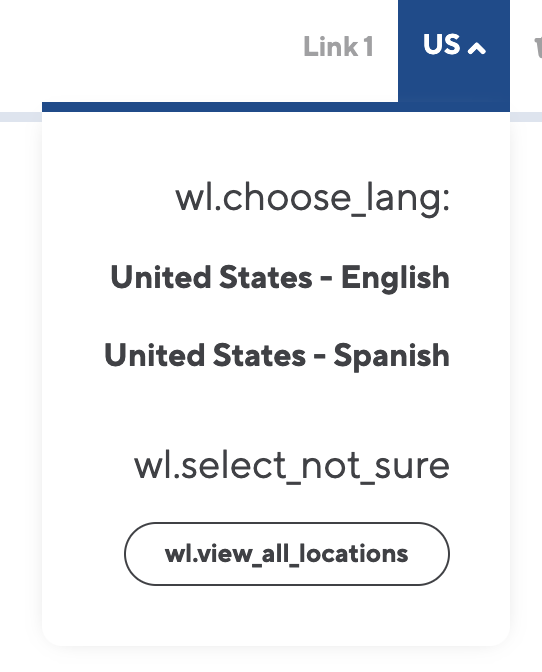
Figure 16
Search
The search section allows you to customise the search popup on the navigation bar.

Figure 17
Table 11
| Setting | Description | Default |
| Show search in navigation? | Show hide the search function in the navigation bar | Yes |
| ID of search results page | Enter the resource ID of the search results page for this context | Pulled from the Search result resource ID on the website Config settings |
| Search input placeholder text | Set the placeholder text to use for the input. By default, this will us a lexicon entry | Lexicon |
| Alternative search link ID | Resource ID of the alternative search link text | |
| Alternative search link text | Text that sits below the search input field and is used to direct users to FAQ sections |

Figure 18