
Field: WL Icon CTA
WL Icon CTA.
Icon and link text call to action with icon option of top or left.
Category: Waterlogic Fields.
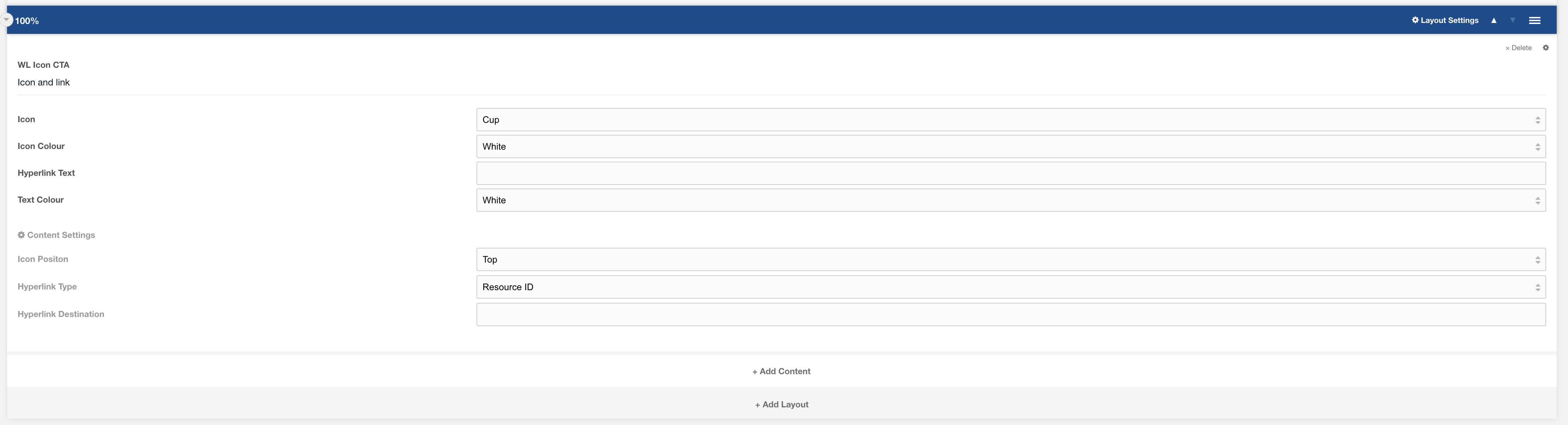
Additional settings found within the cog on the top right of the field:

Font size: The font size of the icon. Default to Regular.
Settings
Icon: Select the icon from the dropdown list (if extra icons are required these will need to be added in.)
Hyperlink Text: The text for the link.
Text colour: What colour should the text be?
Icon Position: Where should the icon appear within the field. Top or left of the content. Default Top.
Hyperlink Type: The type of link. Options include Resource ID, External URL, Modal or Scroll to ID. Default to Resource ID.
Hyperlink Destination: Relavent to hyperlink type if:
- Resource id - Choose a resource ID
- External URL - a full url to link to including https eg. https://www.waterlogic.com
- Modal - The modal ID as created within the modal field. (http://websitedocs.waterlogic.com/books/content-blocks/page/layout-full-page-modal)
- Scroll to ID: If you would like to scroll to a section within the page. Add a unique ID the the layout setting and reference this here.
- Chat Popup - This setting adds logic to the button to allow the chat popup to appear. Each context must have chat JS applied to trigger chat to open.
- Relative URL - This will point to a file locally within the server relative to the context base_url e.g. for waterlogic.com/en-gb/ the base url is /en-gb/ and if you wanted to include a link to a pdf in the uploads folder the button destination would be uploads/mypdf.pdf. the final output to the site will be /en-gb/uploads/mypdf.pdf